IQ软件允许您选择FMEA文件的选定部分并导出它。这个导出的文件可以由第三方用IQ软件打开,编辑,然后重新输入到原始FMEA文档中进行修改,见如下的界面功能:
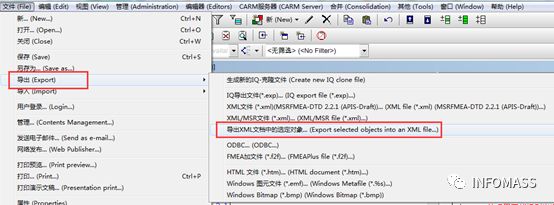
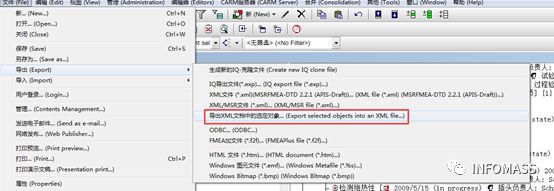
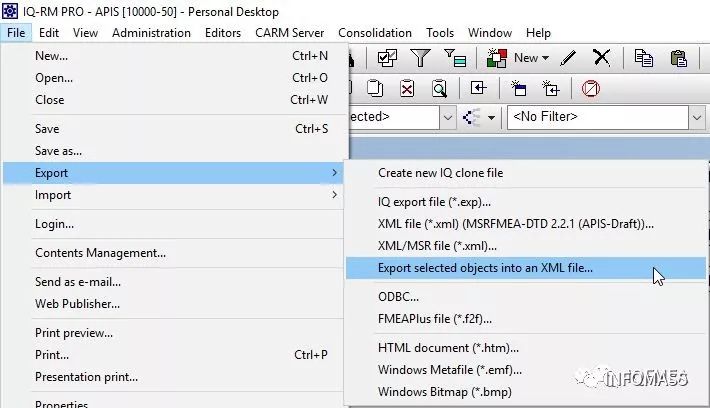
(1)将其用xml导出:
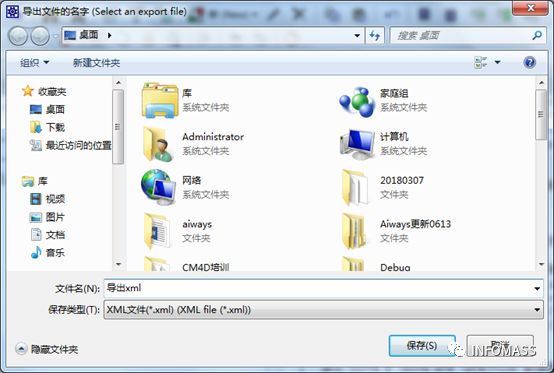
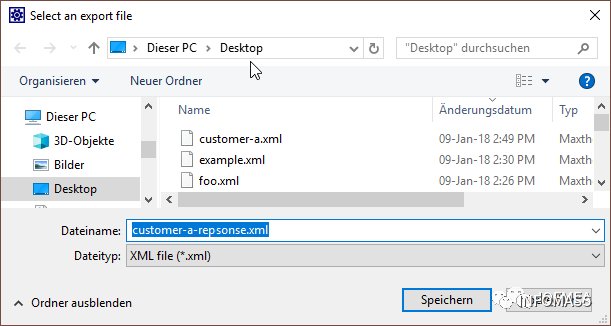
(2)给导出文件起个名字:
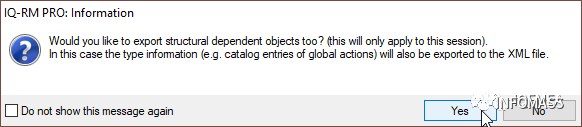
(3)如果要将失效下面的措施也一并导出,选择“是”:

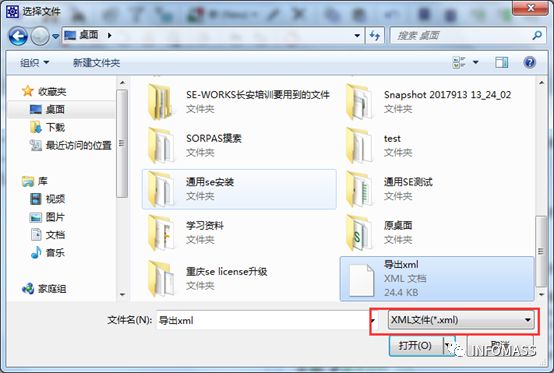
(4)打开刚刚导出的文件:
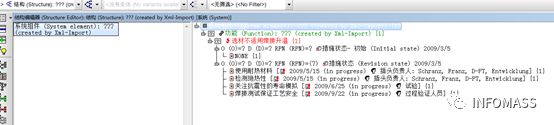
(5)打开后显示如下:
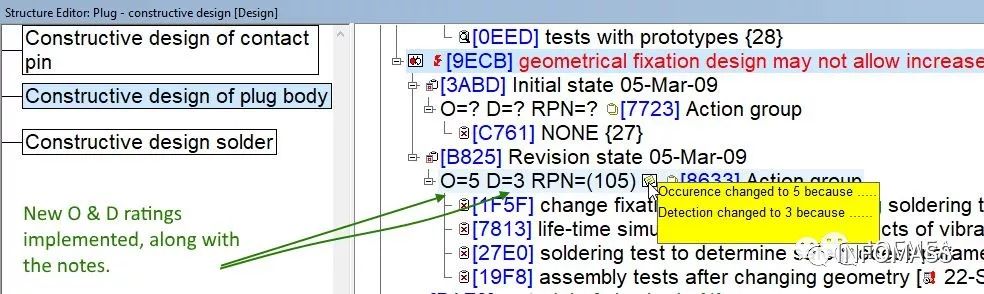
(6)我们把O值和D值添加上去:
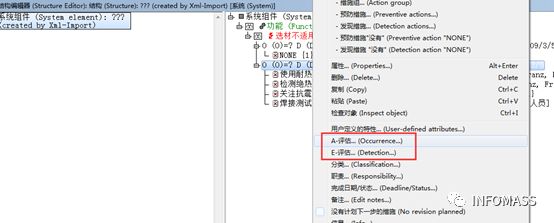
(7)并写上打分理由:
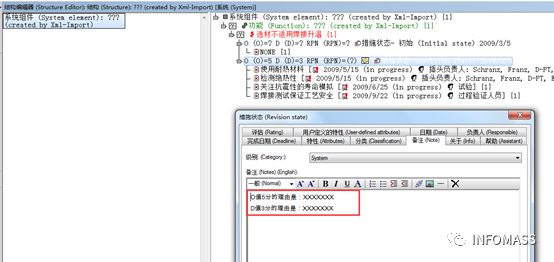
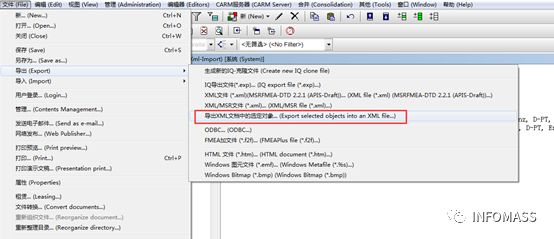
(8)我们把这个修改后的文件再次导出为XML文件:
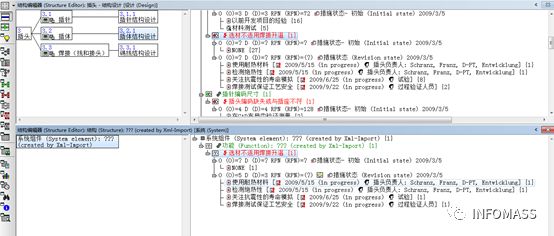
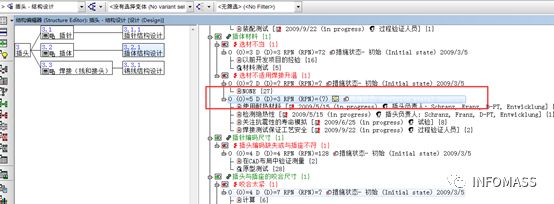
(1)在此之前,推荐确认下两份文件的内容变化,如下图:
(2)确认无误,我们把XML文件导回源文件:
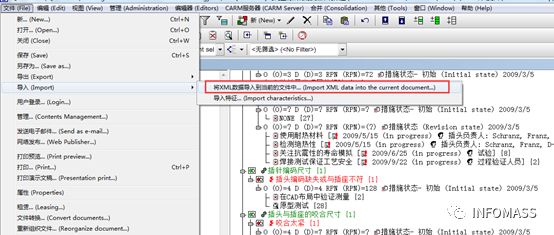
(3)选择我们需要更新的内容部分:
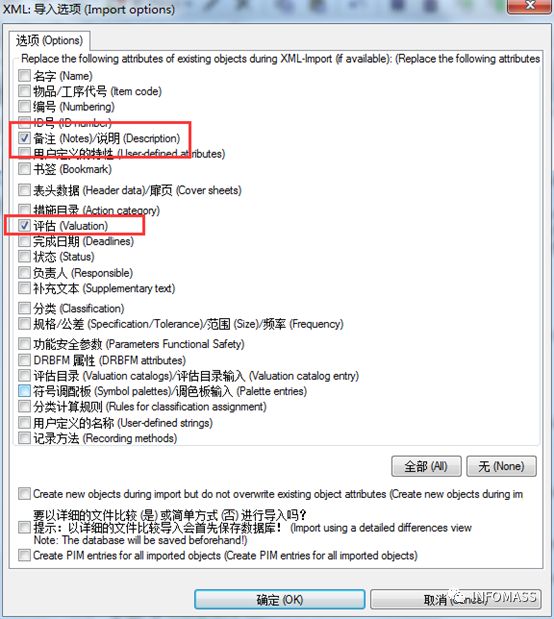
(4)到此,我们成功完成了XML文件的导出/导入功能
附录: 关于XML文件部分导入导出的功能介绍如有不足,以下附上英文原版的功能介绍供大家参考。
Partial XML Export/Import
When performing an FMEA, the situation can arise that you need to send a part of the FMEA to a customer or supplier in order for it to be assessed or evaluated more closely. The customer will then make their changes and send it back to you. In this case, it is not wise to send the whole FMEA to them. The IQ Software allows you to take a selected part of your FMEA file and export it. This exported file can be opened by a third party, edited and then re-imported back into the original FMEA document with the changes.
In order to show how this works, I will run through an example using the example.fme file
Example: Export the failure “geometrical fixation design may not allow increased soldering temperature” from the example.fme
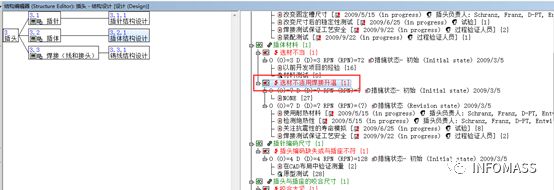
1. Select the element to be exported. Here I have chosen a failure from the “Plug – constructive design” -> “Constructive design of plug body”.
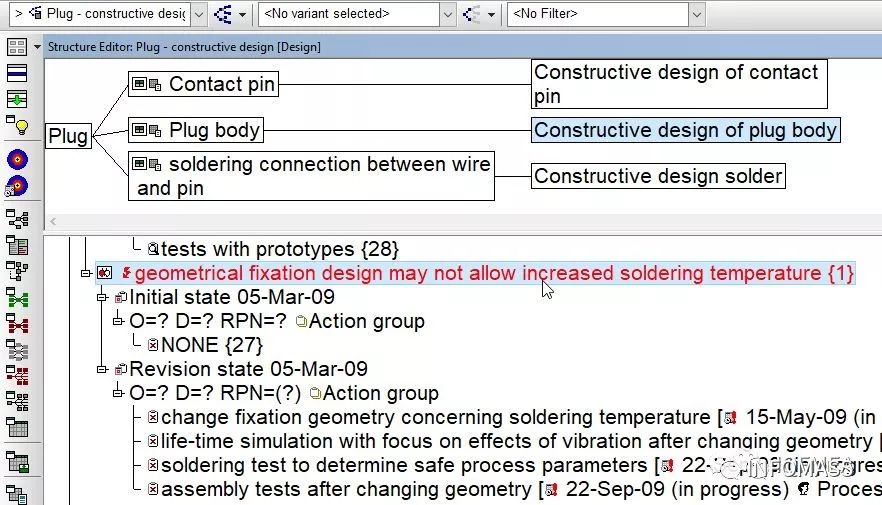
2. With the element selected, go to “File | Export | Export selected objects into an XML file…” 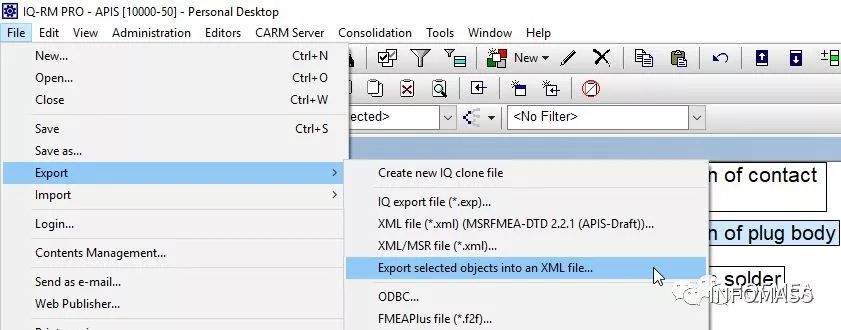
3. Name the XML file.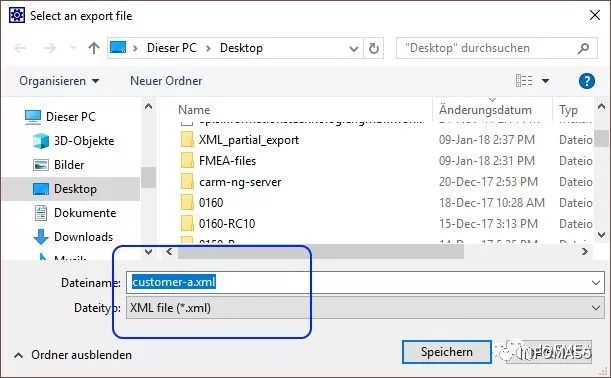
4. To make sure that the anchored objects (i.e. the actions etc.) are also exported with the failure, select “Yes” in the following dialog. Then send it to the desired recipient.
Customer now makes some changes:
5. The recipient opens the XML file
6. The failure chosen has both an initial state and a revision state. The revision state has an action group which contains four actions. No Occurrence- or Detection rating has yet been assigned to this action group. (Note: O and D ratings should only be applied to the action group and not to individual actions).
7. The recipient now assigns ratings for the Occurrence – and the Detection actions of the Action group.
8. And then edits the notes of the action group.
9. Once the changes have been made, the file can be exported again into XML Format (once the failure has been selected), renamed if necessary, and again include all anchored objects of the failure.
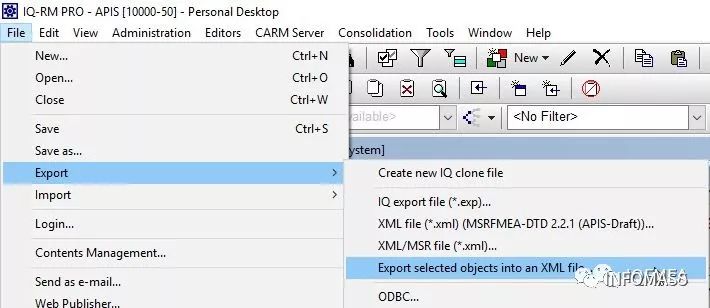
Now it is time to re-import the edited XML file
10. Open the original fme file (in this case the example.fme file) and go to where the failure is (“Plug -> constructive design -> Constructive design of plug body”).
11. Before importing the XML file, it can be useful to compare the two files by using the split screen feature and opening the XML file below. Here it is also recommended to make sure the “Object ID” is ticked in the Display options, in order to recognize objects more clearly (View | Display options | Structure list | Display additional information in structure list | IQ object Id):
12. Now import the XML file into the original fme document,
13. and tick the necessary boxes relevant to the import.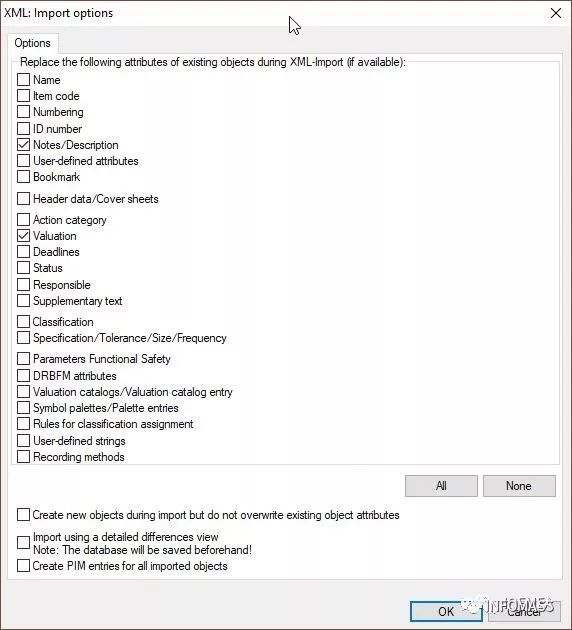
14. This is now finished. The changes made by the customer are now imported into the original FMEA file.